Welcome to the CADOEDU Help Guide
Choose a topic from the menu on the left. Open a menu group, then click a sub menu to read it here.
To find a topic quickly, type a word such as wallet, score or password in the filter box.
For technical help, use Chat Support or call 08060419450. Support is available 24/7.
Summary of Teachers Activities on eResult Processing
Getting Started
These are the activities of every school teacher under CADOEDU after your school has been set up.
- You register as a teacher. Each person registers by himself or herself, using a personal email address. If you are the ICT admin, you can choose to register everyone, but this must be done singly, as if they were registering by themselves. Store each email and password and give them to each teacher to log in and do other activities such as learners registration and score entries.
- ICT admin profiling. All ICT admins must Chat Support to be profiled as such, so they can carry out ICT admin duties such as setting up form/class teachers and assigning subjects to them.
- ICT admin starts the following:
- Assigning classes to class/form teachers who have registered into their school portals.
- Assigning subjects to individual subject teachers.
- Registration of learners (ECC, Primary and Secondary). All class/form teachers register the learners in their own classes. The portal is not designed for one person to do all activities, unless that person is strictly employed for that purpose. Only form/class teachers whose classes have been assigned can register learners. Regular subject teachers cannot see the registration system unless they are also a class/form teacher or ICT admin.
- Printing of portal generated score sheets (optional).
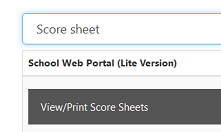 After the initial registration of learners, you can print score sheets from the portal, or view them and copy the names into your personal score sheet. Names online are sorted alphabetically, so the portal class list matches your personal sheet for easy score entry. Print score sheets in first term after all names are registered or migrated to the new class for the new session. Any newly registered name re-orders the list, so re-print termly if many new names joined in 2nd or 3rd term.
- Pre-score entry settings: grading system. Check the default grading system and amend it according to your school criteria before starting score entry. If you do not, the portal uses the default grading to grade scores. This cannot be undone except by amending the grading and re-entering all scores. This setting, and the others below, are done by the ICT admin.
- Score entry proper. Each subject teacher enters scores for his or her subject. You can enter scores from your phone. If a name is missing during score entry, register it afresh if you are the form/class teacher, or ask the form/class teacher to register it. If a name is duplicated, the class teacher should delete one copy using View, Search, Edit, Upload Passport and/or Export Student/Pupils Data. Check for duplicates before starting score entry, so you do not delete the name that has scores. Live support by WhatsApp video screen sharing is available.
- Pre-computation settings. Done by the ICT admin, before or after score entry but before computation. The system pauses computation until they are done for each class/arm.
- Score evaluation settings: the figure the system divides the total score by to get each child's average, used for auto positioning. Set it per class/arm and per term, because a class may not offer a subject in some terms. It can be set once for the whole session but this is not recommended.
- School pass mark settings: must match the pass mark in your grading system. Example: if 0-39.4 is F and 39.5-49.4 is P, your school pass mark is 39.5.
- Set up master sheets and broadsheets: do both in one operation, so you can view raw scores class by class.
- View raw scores before computation to confirm all expected subject scores are complete for each class/arm.
If the score evaluation and pass mark are not set, auto-computation will encounter an error.
- Score computation proper. Any form/class teacher or ICT admin can compute. Computation is automated. Enter the name of H/M or Principal, resumption and vacation dates, tuition fee (optional), and choose whether to display position. The results are then available in the admin area, but not yet to parents/students until published.
- Post-computation activities.
- School wallet funding. Fund your school wallet before publishing results. See Fund Your School Wallet.
- Publishing of eResults. Before publishing, review the entire result by viewing or printing master sheets, noting pupils or students without scores in some subjects.
- Backup request. See Request Comprehensive Data Backup.
Common points to note
- You cannot view computed eResults unless you have paid CADOEDU for the term and funded your school wallet.
- You cannot publish termly eResults for parents and students unless you have paid CADOEDU for the term and funded your school wallet.
- You cannot proceed to the next term until all eResult activities for the previous term are complete: compute, fund wallet, publish and request backup.
- During computation, and in master sheets and broadsheets, the system discards pupils or students who do not have scores in all subjects.
- After publishing, students and parents access results with the permanent scratch card or access PIN issued by you, obtained from the CADOEDU office.
- A PIN or scratch card lost before use cannot be retrieved; a new one must be bought from CADOEDU. If the PIN was already used, the school ICT admin can retrieve it with the SCRATCH CARD PIN QUERIES tab.
- One teacher can work in two schools, but not with the same email address.
About wallet debiting
Your school wallet is debited once a result is accessed, either from the admin area or with a PIN. The debit is once per term for each child. After that, the child's result for the term can be accessed any number of times without further debit.
Permanent required settings
These do not need to be repeated termly or annually unless the school makes changes.
- Pass mark
- Assigning classes to class/form teachers (unless a teacher changes)
- Assigning subjects to teachers (unless a teacher changes)
- Grading system (if changed, the pass mark must be set to match)
- Setting up master sheets and broadsheets
Continuous/annual required settings
- Main computation inputs, if the data changes
- Score evaluation settings per class/arm, termly (or one-time)
- School wallet funding, termly after computation and before publication
- Publication of results, termly after computation
How to Register as a Teacher
Getting Started
- Visit the portal at cadoedu.org or open the CADOEDU app. Click Teachers Login, then Register as Teacher.
- If this is your first time, click OBTAIN FREE ACCESS CODE HERE. Fill in your name, select your school and proceed.
- The access code is shown on the screen (see How to Find Any Access Code).
- Return to the portal, click Teachers Login again, then Register as a Teacher. Enter the access code and click Start Registration.
- Fill in the form and submit to register.
- After successful registration, log in. You will be prompted to change your password on first login only. Then inform the supervisor to make you portal admin for your school, so you can register others or guide them.
- Once you are made admin, log in and find CREATE AND MANAGE CLASSES in the menu to assign a class to yourself.
- To register the students that will take the exam, use the REGISTRATION menu.
If you are a school HM or principal, reach out to the project supervisor to assign you higher portal access rights, so you can set other teachers to their access levels such as ICT admin and form teacher.
When it is time for score entry, your school ICT admin will assign you classes and subjects for score entry, which will be covered during training.
If you forget your password, use the forgot password feature. See Reset a Lost or Forgotten Password.
How to Find Any Access Code
Getting Started
When you request an automated access code, either to register your school or to register as a teacher, the access code is displayed on the screen for you to see.
Sending access codes by email has been disabled because of abuse by teachers.
After Registration, What's Next?
Getting Started
If you are a school ICT personnel, HM or principal, send support this message:
"My name is ..........
I am the ICT personnel, HM or Principal of ...... school.
My registered email is ............
Grant me access rights to all administrative features."
You will be profiled within a few minutes of sending your message.
After you are set up as admin, HM or principal, you can set other users (teachers) as needed: non-portfolio form/class teacher, admin, or portfolio form/class teacher. Use the View and Manage Users/Staff/Teachers tab to do this.
By default, these classes are already created: Primary 1 to 6 (arms A - E), JS 1-3 (arms A - E) and SS 1-3 (arms A - E).
Use the Create and Manage Class tab to assign classes to form/class teachers. This makes them "Portfolio Form/Class Teachers". They will then see the Register Pupils/Students tab when they log in.
Only admin, portfolio and non-portfolio form/class teachers can register pupils and students. Only portfolio form/class teachers can compute eResults.
How to Login as a Teacher
Getting Started
- Visit portal.cadoedu.org or open the CADOEDU Web Portal Android app.
- Click the Teachers button at the top, then Login as a Teacher.
- Select your school from the list of registered schools. Only schools whose setup is completed are displayed.
- Enter your registered email address and password, then log in.
If your school is registered but you cannot find it, setup has not yet been done for the school. Check back in the next 24 hours.
How to Reset a Lost or Forgotten Password as a Teacher
Getting Started
- Visit portal.cadoedu.org or open the CADOEDU Web Portal Android app.
- Click the Teachers button at the top, then Login as a Teacher.
- When it loads, click FORGOT PASSWORD at the bottom of the page.
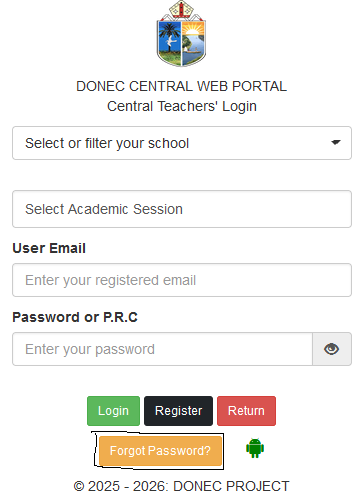
- On the forgot password page, select or filter your school from the list, enter your registered email and click proceed.
- The portal disables your current password, generates a Password Reset Code (PRC) and sends it to your registered email. The code is also stored in your portal directory. Any class/form teacher or ICT admin can fetch it for you from the administrative dashboard under the FIND PASSWORD RESET CODE (PRC CODE) tab.
- Use the PRC as your default password to log in. The portal then prompts you to change it or keep it.
The PRC is valid for one-time login and is erased once used.
How to Find Password Reset Code
Getting Started
When a teacher requests a password reset code, the system deactivates the existing password, generates a default password reset code, sends it to the registered email and stores it in your portal directory.
There are two ways to find it:
- Check your registered email. It arrives within a few seconds.
- The ICT admin or any class/form teacher can find it for you from the administrative dashboard, under the FIND PASSWORD RESET CODE (PRC CODE) tab.
If you cannot find the code in your email after a few seconds, ask your school ICT admin or a form/class teacher to find it for you.
Use the code as your default password to log in. The system then prompts you to choose another password and erases the code.
How to Assign Classes to Class/Form Teachers
School Setup and Users
- Make sure all teachers in your school are registered. See How to Register as a Teacher. If you are the Portal/ICT admin and want to register all teachers, use the same procedure: obtain a free access code for each and register them individually. Note down each teacher's login details and give them to the teacher, who needs them to log in and enter scores.
- Make sure you, as Portal/ICT admin, have been set as ADMIN by the supervisor or other support personnel. If not, register and request it, for yourself and your HM or principal, by sending both registered names and emails to the supervisor or support personnel on the group.
- After you are told you have been set as admin and/or principal administrator, log in at portal.cadoedu.org or the CADOEDU app and click CREATE AND MANAGE CLASSES.
- Click the black tab VIEW AND MANAGE ALL CLASSES WITH CLASS/FORM MASTERS to expand it.
- You will see all classes with two dropdowns, for the first and second class/form teacher. You can type a class name in the Filter class and or for teachers input. Click SELECT TEACHER, choose values in both dropdowns, then click ASSIGN.
If the class has only one class/form teacher, select the same person in both dropdowns, as the instruction in red on the page says.
Assigning classes gives class/form teachers access to register their own pupils and students, which may be too much for one ICT admin in a large school. It also gives them access to eResult computation.
How to Assign Subjects to Teachers
School Setup and Users
- Make sure all teachers, full or part-time, are registered.
- Make sure you have been set as Portal/ICT Admin alongside your HM and/or principal.
- Log in and click ASSIGN SUBJECTS TO TEACHERS.
- All created subjects show as black horizontal tabs. If you cannot find a subject, contact support. You can type a subject name or class in the FILTER SUBJECTS input at the top.
- Click a subject to expand it, then click SELECT TEACHER. Choose the first teacher from the first dropdown. Choose a second teacher if the subject has two; otherwise leave the second dropdown empty. Click RE-ASSIGN to execute.
Do not delete any subject.
Assigning subjects gives teachers access to enter scores for those subjects when they log in.
How to View and Manage Users/Staff/Teachers
School Setup and Users
As ICT admin and/or class/form teacher, you can view all registered teachers using the tab below.
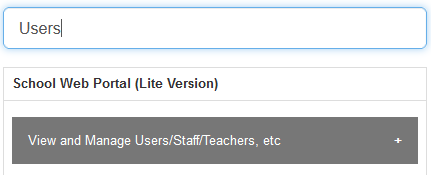
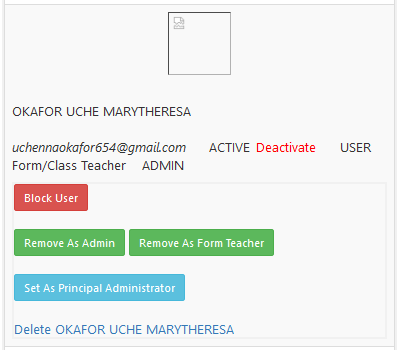
You can do the following for each user:
- Set as admin
- Remove as admin
- Block
- Unblock
- Delete
Only users with a minimum of supervisor role can do the same for principal administrators.
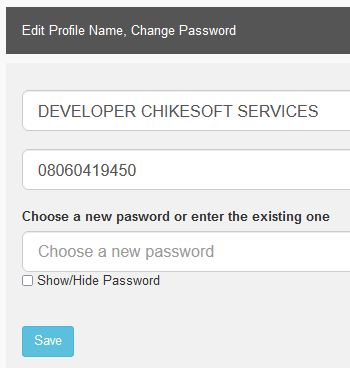
How to View, Edit Profile and/or Change Password as a Teacher
School Setup and Users
The tab below lets ICT admins, form/class teachers and regular subject teachers do this.
How to Request Change of School Email
School Setup and Users
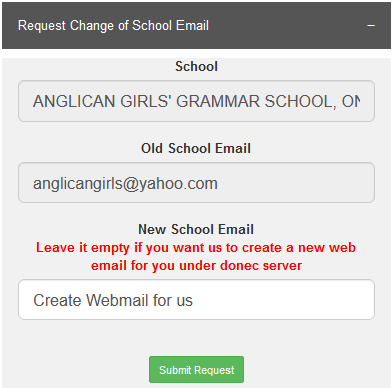
If you initially used a personal email to register your school, you must change it. Here is how:
- Log in as ICT admin or form teacher and find the Request Change of School Email tab.
- Fill in the short information and submit. The change is made within 48 hours and the system notifies you by email.
- If you want CADOEDU to create a new webmail for your school on the CADOEDU web portal server, leave the request input field empty, as described on the portal.
Access to your portal may be restricted in future if you do not make this request earlier, as directed.
How to Use CADOEDU Server Email
School Setup and Users
Some personal emails used to register schools have been converted to CADOEDU web-based emails. Personal emails have also been set up for some teachers under the same webmail server.
- Open the portal at portal.cadoedu.org.
- Click the EMAIL icon at the bottom.
- Enter your webmail and password and log in. If correct, your inbox opens so you can view incoming mail such as alerts from the CADOEDU portal, and compose and send email.
If you are a school, you can find your new CADOEDU webmail and its default password under SCHOOL CONTACT DETAILS when you log in as admin or form teacher.
For further guidance, such as changing your password, chat support anytime.
How to Register Learners (ECC, Primary and S.S. 3)
Pupils and Students
Registration of learners can only be done by users (teachers) with these roles:
- Titled form teachers: users given access as portal/ICT admin but not forming a class.
- Portfolio form teachers: teachers assigned to form a class as form master or mistress.
- H/M and/or principals.
To get access, register as a teacher by following How to Register as a Teacher. After registration, contact support to set you as admin. This gives you access to more features, including registration of pupils and students, done from one central tab: Register Pupils/Students.
Once you are set as admin, you can assign classes to form teachers. Teachers assigned to classes can register pupils and students into their own classes or other classes. Titled form teachers also have access to register.
All teachers should register, and form teachers should be set by the admin, so registration is decentralised and each form teacher registers his or her own pupils or students.
How to View/Edit Profiles and Upload Passport of Pupils or Students
Pupils and Students
The tab below lets ICT admins and class/form teachers view and edit profiles and upload passports.
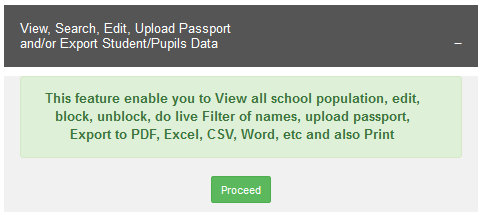
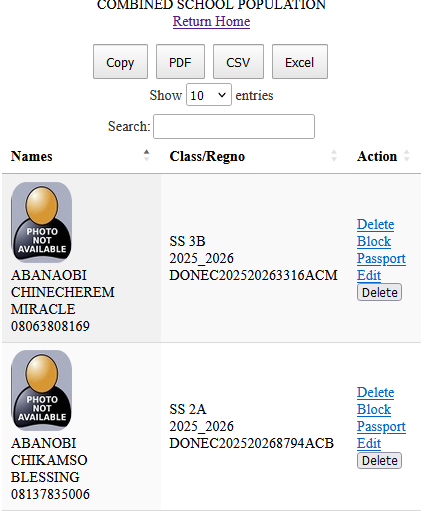
When you open it, you see the combined school population. Type any name in the search field to find it in real time, then use the tools on the right:
- Delete
- Block
- Passport
- Edit
Whatever you do is recorded under your profile, in case of any sharp practice.
How to Export the Entire School Population or a Class List
Pupils and Students
Use this tab to view and export the entire school population to Excel, CSV, PDF or Word.
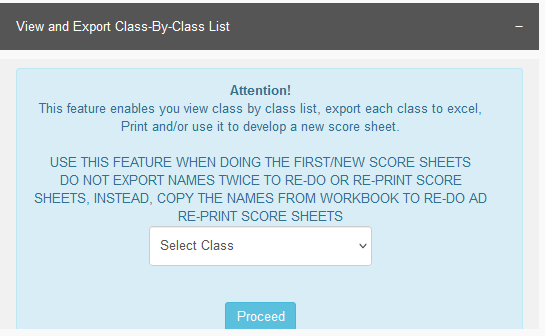
Use the tab below to select any class and export its list to Excel, CSV, PDF or Word.
Pupils/Students Inter-Class Swapping
Pupils and Students
Use this feature to move a child from one class or arm to another, for example from A to B or C. It is useful when:
- A child was registered into the wrong class.
- You need to move SS 1 students to their elective areas of study in 2nd term.
The system moves the child's profile and all previous scores to the new class/arm. The profile and result are checked from the new class/arm from then on, while all previous scores stay intact for cumulative computation.
You must be a titled and/or portfolio form/class teacher to use it. Find the tab below.
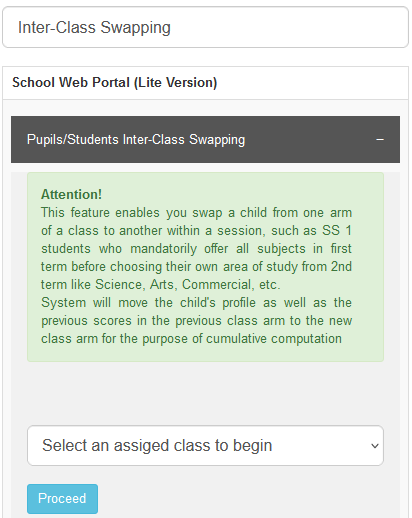
Select one of the classes assigned to you and proceed. The class list of that class opens. Each child has a dropdown of all available classes to move the child to. There is also a filter on top of the page to find any name without reloading.
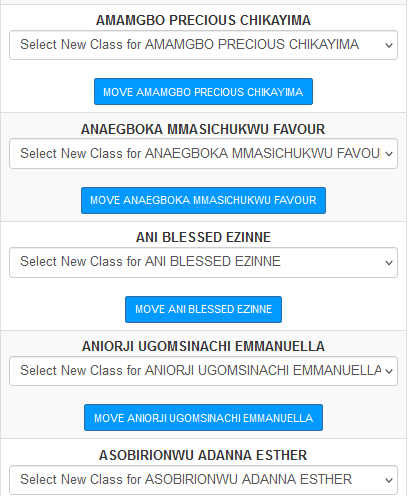
You can only swap one child at a time.
Pupils/Students Skill Acquisition Settings
Pupils and Students
This feature lets you set each child to a skill acquisition area under trade subject. Each titled and/or portfolio form/class teacher does this when necessary.
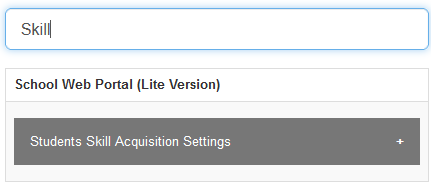
When you open the tab, the page loads as shown below.
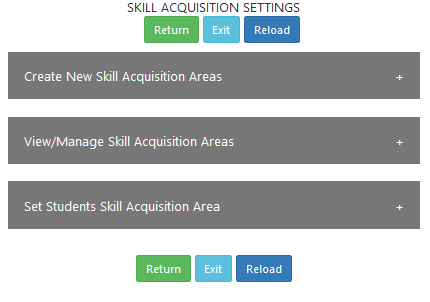
- The first tab lets you create all the skill acquisition areas your school offers under trade subject.
- The second tab lets you view and manage created skill areas: edit, delete, disable or enable.
- The third tab is where you select a class and set the skill area per child.
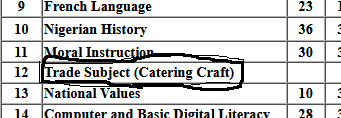
Whatever you set for each child displays under trade subject on the eResult (report card).
How to Block and/or Unblock Individual Results
Pupils and Students
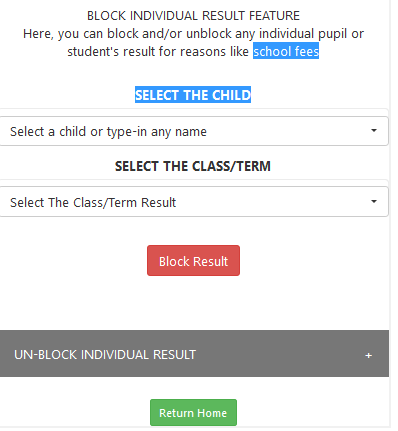
Use this feature to block or unblock any child's result for any reason approved by the management of the school.
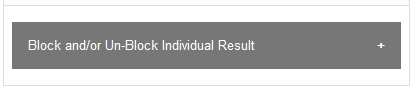
When you click the tab, select the child and the term/class, then block eResult access. There is also a tab to view all blocked results and unblock them when necessary.
Pupils and/or Students PIN Queries
Pupils and Students
To find any pupil or student's lost scratch card or paper PIN, use this tab.
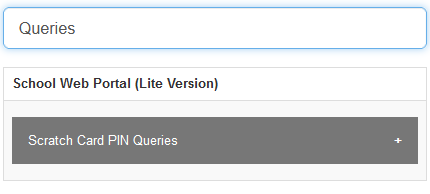
When you click it, you see the page below.
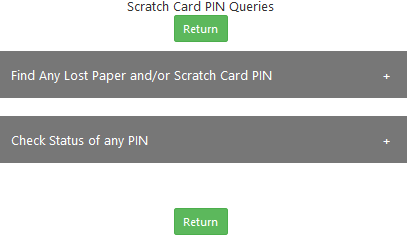
You can then carry out all the activities labelled on the two tabs.
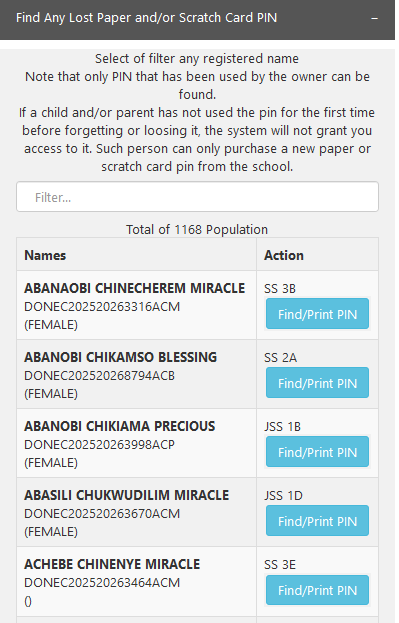
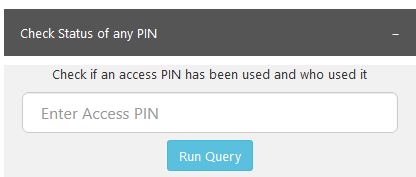
Whenever you view a child's PIN, the system keeps a record and sends a signal to the parent's email, if the parent email is profiled, informing the parent that you accessed the child's login PIN. Do not view any child's PIN unless the child or parent asked you to find or reprint it.
Score Grading Setting (Pre-Score Entry Setting)
Score Entry
Before you start score entry, set the score grading.
- As ICT admin or HM/principal, log in and find the View/Set Score Grading System tab. You can also type "Score Grading" in the filter input at the top of your dashboard.
- Open it and adjust as desired. After setting the 1 to 100 values with grades and remarks, complete the summary at the bottom and save.
If the grading we have set is exactly what your school uses, or your school wants to adopt it, you do not need to do anything. Just start score entry.
There is a short video on this guide in the WhatsApp group, and support is available any time.
Printing of Portal Generated Score Sheets (Optional)
Score Entry
After the initial registration of learners into your class, you can print score sheets from the portal, or view them and copy the names into your personal score sheet. This makes the portal records match the arrangement of your personal recording sheet, for easy score entry.
Names online are sorted alphabetically, so the portal class list matches your printed or personal score sheet.
Print score sheets in first term, after all names are registered or migrated to the new class for a new session.
Whenever a new name is registered into a class, the alphabetical sorting re-orders the list. If many new names joined in 2nd or 3rd term, re-print termly and stop using the old one.
If you are copying names from the portal class list into your personal score paper instead, do it termly after all new names are registered, so the online list matches your recording book.
Score Entry and Uploading
Score Entry
Before you start, make sure your ICT admin, HM or principal has set or adopted the score grading. Look carefully at the default grading and make changes, save or leave it alone.
The pass mark in the grading setting must also be the pass mark you set later in the SET YOUR SCHOOL PASS MARK tab, before the one-click computation.
This system is designed for every ECC and Primary class subject teacher to enter scores for his or her class, and for each subject teacher in the secondary section. It is not designed to put the burden of score entry on one person, unless that person is strictly serving that purpose. The role of ICT/Portal admin users is to get direct training and guides from the developer and explain them to other colleagues.
1. Bulk/automated score entry and uploading
The system loads the whole class list with C.A and exam inputs for each child. Enter scores for all the children, then click UPLOAD at the bottom. All scores are processed, auto computed and saved into the database.
To use this method, find or filter the tab Start Score Entry and Uploading, select the class, your assigned subject and the term, then click PROCEED.
2. Manual/single score entry
This method was developed as an alternative to the bulk method. It has been effective so far, with no complaints from users.
It starts the same way: make the same selections and see the entire class list. The difference is that you save each child's score separately by clicking the red airplane icon in front of the child.

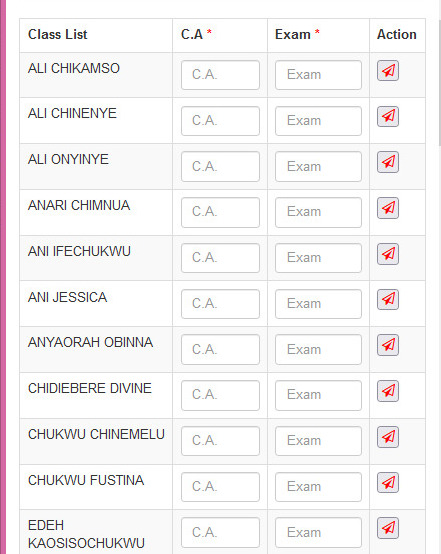
Use your PC, phone or tablet browser for this, not the app, for easy return and navigation.
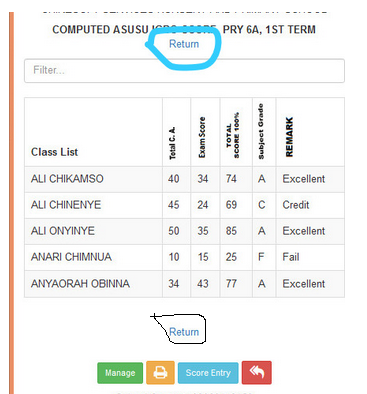
When you click the airplane icon, the system processes the score in a new browser tab and shows the result below. All scores you have submitted one by one show as a table. Click the RETURN link at the top or bottom to close the new tab and return to the previous screen, where you can see the last score you entered.
Viewing and support
Use the VIEW RAW SCORES tab to view all raw scores entered (you must set up the master sheet first), or the VIEW/EDIT MY SCORES ENTRY tab to view and edit your scores. ICT/Portal admins can view or edit any score and re-assign a score to another teacher to edit. You can chat with support in real time for on-the-spot help.
Do not leave any input blank during score entry or editing. Enter zero for a child's C.A or exam if the score is unknown, absent, left or zero. The system will not submit the entry if any field is empty.
Whichever method you choose, processing is done the same way internally and you can see the output instantly.
Score Viewing and Editing (Option A: View Raw Scores)
Score Entry
To view all raw scores entered per subject by each subject teacher, without computation:
- Log in and set up the master sheet. See Pre-Computation Settings.
- Find or filter the View Raw Scores tab.
- Select a class and proceed.
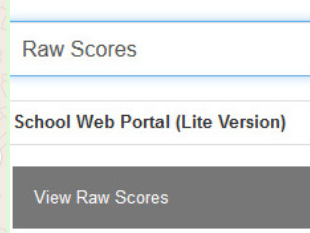
A master-sheet-like page shows the summary of scores entered per subject. Empty subjects show you where scores have not been entered.
Score Viewing and Editing (Option B: View/Edit My Scores)
Score Entry
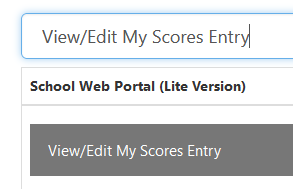
To view and/or edit your scores, find or filter the View/Edit My Scores Entry tab. It shows all the scores you have entered, each with a green View/Edit button and a red trash icon. The trash icon erases the score; View/Edit lets you view and edit it.
Editing works like the automated score entry method. If you get a blank page after submitting edited scores, use the manual score entry method described in Score Entry and Uploading.
Editing or erasing scores can only be done if the class eResult has not been computed. Once computed, ask the ICT/portal admin or a titled or portfolio form teacher to disable computation for that class. You are then granted access to edit using any score entry method. After editing or erasing, inform the same person to re-compute that class result. See How to Disable Computation.
The last computation date is always printed on report cards, for those who printed a result before and print again later and see a change in class position.
Do not leave any input blank during score entry or editing. Enter zero for any C.A or exam that is unknown, absent, left or zero. The system will not submit the entry if any field is empty.
How to View Score Entry/Uploading History
Score Entry
- Log in as portal/ICT admin and/or titled/portfolio form/class teacher.
- Type the keyword Computation in the filter input. Some tabs with that keyword appear.
- Click Manage Termly eResult Computations to see the score upload history and records.
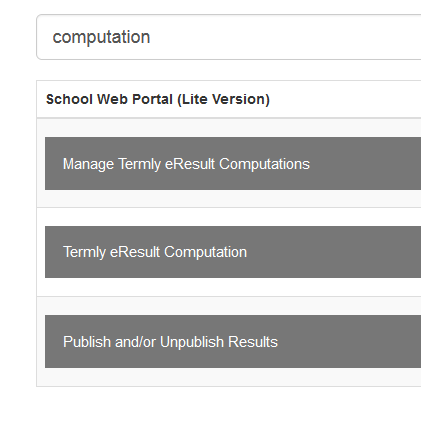
The score details are only seen in the score computation/preview stage, which you start from one of the tabs that appear when you type "Computation".
Pre-Computation Settings (Pass Mark, Score Evaluation Figure, Master Sheet Setup)
Computation and Results
Before you start computation, make these three settings.
1. Set your school pass mark
The tab is Set Your School Pass Mark. The pass mark you set here must match the pass mark in your score grading settings.
2. Set your school score evaluation figure
The tab is Termly e-Result Class-By-Class Evaluation Settings. Set it for each class. Each class/form teacher can set his or her own, or the ICT admin can set for all.
This is per class because a class may not offer a particular subject, and the general school evaluation figure cannot be used to judge it.
3. Set up master sheet and broadsheet
The tab is Setup Master Sheets and Broadsheets. When it loads, select a class, term and session, then click Create. Repeat for all classes in your school. Do this termly, plus cumulative in 3rd term, so you can select classes when viewing master sheets and broadsheets.
If you do not follow this guide, parents viewing results will see inconsistencies in your school eResult.
Next, read Termly eResult Computation. For further help, reach out to technical support 24/7 by chat or call 08060419450.
Termly eResult Score Computation Guide
Computation and Results
Make sure you have done the Pre-Computation Settings before you compute.
To compute scores in one click, find the Termly eResult Computation tab.
This tab is only visible to a portfolio form/class teacher, that is, a user assigned a class to manage. To compute all classes as ICT/portal admin, assign all classes to yourself after the subject teachers have finished entering and uploading scores.
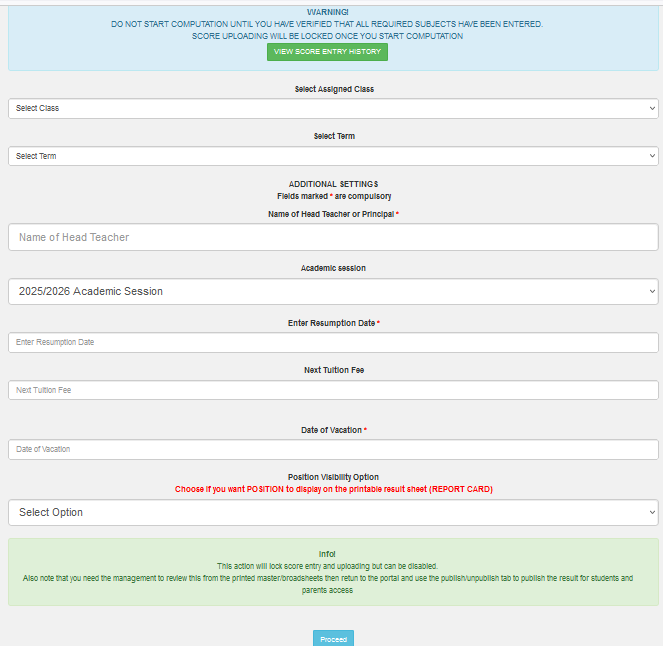
To compute a class result, set the inputs shown in the image below and click proceed. The system does the rest and shows the computed preview. You can then view the master sheet or broadsheet if you have set them up.
For further help, contact support 24/7 by chat or call 08060419450.
How to Disable Computation
Computation and Results
After a class is computed, the system prevents score editing. If a teacher needs to edit a score or enter an omitted score, any titled and/or portfolio form teacher or ICT admin can disable computation for that class.
- Find or filter the Manage Termly eResult Computations tab and click it.
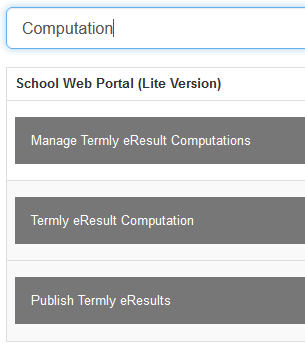
- When the page loads, type the class in the filter input at the top.
- Click the red DEACTIVATE/UNPUBLISH button for that class. The system deactivates the computation and unpublishes the result instantly.
Students and parents can no longer access the result of that class until you recompute and re-publish.
After disabling, inform the teacher to view/edit the score or use the manual score entry method to re-enter it, and to tell you when done so you can re-compute and re-publish.
The last computation date always appears on the report card, for those who checked the result earlier and check again to see changes in position, if position visibility is enabled during computation.
How to View Master Sheets and Broadsheets
Computation and Results
First set up the master sheet and broadsheet. See Pre-Computation Settings: use the Setup Master Sheets and Broadsheets tab, select a class, term and session, click Create, and repeat for all classes. Do this termly, plus cumulative.
Master sheet
- Return home and find or filter the View/Print Class-By-Class Master Sheets tab.
- Click Select Class, choose a class and proceed to view the master sheet.
- From the master sheet you can open individual results (report cards) or print in bulk with PRINT ALL.
Bulk printing with PRINT ALL omits the first child's result. Print that first result manually with the print button beside it.
Printing individual or bulk results from the master sheet debits your school wallet the CADOEDU web portal fee for each child printed. The debit is one-time for each term. See View/Print Single or Bulk Results.
Broadsheet
Find or filter the Print Class-By-Class Broadsheet tab. The remaining steps are the same as for the master sheet.
How to View/Print Single or Bulk Pupils or Students Result
Computation and Results
- Find or filter the View/Print Class-By-Class Master Sheets tab.
- Click Select Class, choose a class and proceed to view the master sheet.
- From the master sheet, open individual results or print in bulk with PRINT ALL.
Bulk printing with PRINT ALL omits the first result. Print that first result manually with the print button beside the first pupil/student.
Wallet debit
Printing individual or bulk results (report cards) from the master sheet debits the school wallet the CADOEDU web portal fee for each child printed. The debit is one-time for each term.
After the first debit, which happens when you view/print the result from the master sheet or when the child/parent views the result, the system does not debit your wallet for that child again in that term, no matter how many times the result is viewed or printed.
If your wallet is insufficient when you click PRINT ALL, the system debits those not yet debited in that term and class. When the wallet is exhausted, it stops processing until you fund your wallet and click again. It then skips children already debited and debits the rest before showing all the results.
How To Fund Your School Wallet
Wallet, Backup and Others
This feature is only visible to ICT/Portal admins and titled and/or portfolio form teachers (class teachers).
- Remit the CADOEDU web portal fee you collected for your school to the CADOEDU bank account through any channel CADOEDU presents, such as bank cash deposit, app transfer, USSD transfer or POS. Keep evidence of payment, such as a screenshot or teller copy.
- Return to the portal and find or filter the Wallet Funding Requests/History tab.
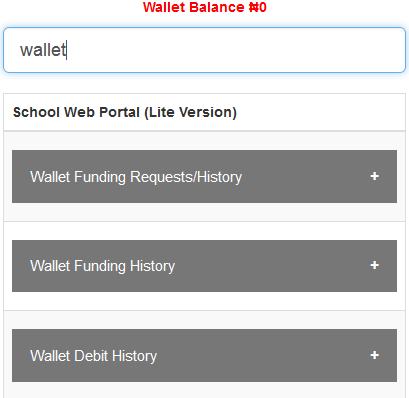
- Fill in the form, attach the evidence and submit.
Once funded, students and parents of pupils can start accessing results online, and the fees are debited from your wallet.
The debit is one-time per child per term, and the amount is the approved fee to be remitted to CADOEDU as the web portal fee. Inquire at the CADOEDU office for more information. For swift funding, reach out to CADOEDU clerical or administrative staff, or contact technical developer support on chat after submitting the request.
Until you remit the web portal fee, request wallet funding and get funded, scratch cards and PINs collected at the office for parents and students will not be usable for that term.
Your wallet is debited when someone checks a result for the first time each term. Re-checking in the same term does not debit again.
If you see "DANGER! WALLET NOT FOUND", you recently changed your school email on your side. Contact support to update it at the backend and the warning will disappear.
How to Request Comprehensive Data Backup
Wallet, Backup and Others
The CADOEDU central web portal exists for comprehensive remote backup and archive of all schools' academic data within the diocesan educational jurisdiction.
You can only request this backup when you are completely done with all academic activities for the term and/or session. We recommend making the request at the resumption of a new term, when the previous term's activities are complete. This backup is crucial for the education commission and cannot be done without your cooperation and consent.
- Log in as ICT admin and/or form/class teacher and find the REQUEST COMPREHENSIVE DATA BACKUP tab.
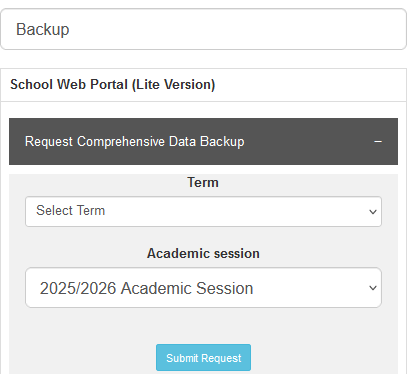
- Fill in the short form and submit.
The system notifies the supervisor by email to run the automated comprehensive data backup for your school for the term and/or session you specified. The backup is kept exclusively with CADOEDU.
How to Submit Web Portal Exemption Letter
Wallet, Backup and Others
To get exempted for any or all terms of a session in the CADOEDU web portal project, use the tab below. The instructions on what to do are contained under that tab.

About User Bonus/Earnings
Wallet, Backup and Others
To learn more about your bonus earnings as a class/form teacher, use the tab below.
How to Use CADOEDU Portal as a Parent and/or Student to Check eResult
Parents and Statistics
- Visit portal.cadoedu.org or open the CADOEDU app.
- Click the CHECK RESULT button.
- When it loads, select or filter your school, select the academic session and class, then click VIEW CLASS LIST.
- When the class list loads, find your name and click the USE REGNO button beside it to return.
- When the portal returns with your details, enter your permanent scratch card PIN or the temporary paper PIN and click LOGIN.
If you lost your scratch card or paper PIN, give your email to the child's form/class teacher to profile. Then return to the portal, click RECOVER LOST SCRATCH CARD PIN and follow the on-screen directions to receive the child's lost PIN at your profiled email address.
Other services and application features can only be accessed after you log into the pupils/students area.
If you have any technical issue, reach out to your school ICT personnel or Chat Support.
How to Submit School Data
Parents and Statistics
- Visit www.cadoedu.org or open the CADOEDU Web Portal Android app.
- Click Statistics from the menu, if it has not been closed by the office, and fill in the form.
For any difficulty, contact technical support on 08060419450.